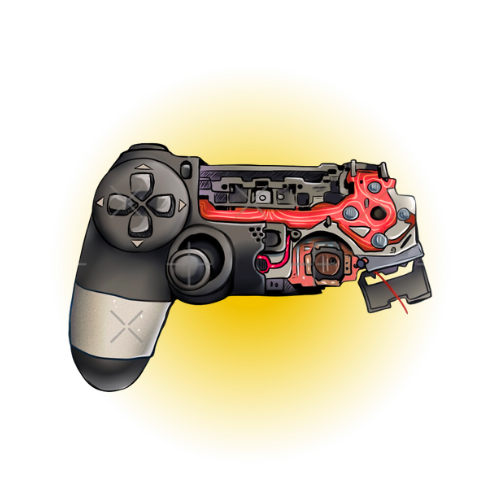
Welcome to Free Gampepad Tester Online - No Install Required
Gamepad Tester
PS5, PS4, PS3 & Xbox Controller Testing and Instant, Free & Private
Connect any gamepad and test every button, stick, trigger, and rumble motor directly in your browser. No downloads. No accounts. 100% local.
Live InputPS5 DualSensePS4 DualShock 4PS3 DualShock 3Xbox Series X/SXbox OneXbox 360
No controllers detected — Connect via USB or Bluetooth and press any button
USB Compatible
Bluetooth Ready
No controllers detected
Connect via USB or Bluetooth and press any button to activate. Your browser will detect it automatically.
USB Compatible
Bluetooth Ready
Controller Connectivity Options
Controller
USB
Bluetooth
Rumble
Triggers
Notes
PS5 DualSense
✓ Yes
✓ Yes
✓ Yes
✓ Yes
Chrome / Edge full support
PS4 DualShock 4
✓ Yes
✓ Yes
✓ Yes
✓ Yes
Widely supported
PS3 DualShock 3
✓ Yes
~ Partial
~ Partial
✓ Yes
May need driver on Windows
Xbox Series X/S
✓ Yes
✓ Yes
✓ Yes
✓ Yes
Best on Windows + Chrome
Xbox One
✓ Yes
✓ Yes
✓ Yes
✓ Yes
Full XInput support
Xbox 360
✓ Yes
✗ No
✓ Yes
✓ Yes
USB only
Generic USB HID
~ Partial
✗ No
✗ No
~ Partial
Depends on device
Free · No Download · All Controllers
About Gamepad Tester
What is Gamepad Tester?
Gamepad Tester is a free, browser-based controller diagnostic platform trusted by millions of gamers worldwide. Connect any PS5, Xbox, Nintendo Switch, or PC gamepad and instantly test every input — buttons, analog sticks, triggers, vibration motors, and more — in real time, with no downloads, no sign-up, and complete privacy. Every test runs locally in your browser, so nothing is ever sent to our servers.
Free Forever100% PrivatePS5 · Xbox · SwitchNo Download24/7 Live Support
Trusted Since 2012
Why Choose Gamepad Tester?
Gamepad Tester is the most trusted free controller diagnostic platform on the internet. built by gamers, for gamers. For over 13 years we have provided instant, accurate, private controller testing with no downloads, no accounts, and no cost. Whether you are diagnosing stick drift before a ranked match or verifying a new controller out of the box, Gamepad Tester gives you the honest, raw data your hardware is actually sending.
100% Free and Always Will Be
Every tool on Gamepad Tester is free to use with no premium tiers, no paywalled accuracy, and no subscription required. Every gamer gets the same honest results.
Completely Private — No Data Collected
All testing runs locally in your browser. Button presses, axis values, and input readings are never transmitted to our servers. Your controller data stays on your device.
Instant Results — No Download Required
Open your browser, connect your controller, press a button, and testing begins. No software to install, no drivers to update, no account to create.
Real Human Support Available 24/7
Our team of four controller hardware specialists is available around the clock to help diagnose any issue — from stick drift to vibration faults to connection instability.
13+Years Online
20+Controller Types
24/7Live Support
Top Rated Tool
Trusted by Millions of Gamers
Complete Guide
How It Works Gamepad Tester
A complete guide to testing how it works your gaming controllers with Gamepad Tester. Press buttons, move analog sticks, pull triggers, and test vibration motors in real time — directly in your browser, no downloads or sign-ups needed.
Plug your controller into any USB port and it's detected automatically. Works with all wired controllers and most wireless receivers. Instant detection, no setup required.
Bluetooth Connection
Hold the pairing button on your controller, connect through your device Bluetooth settings, and press any button once it's paired. The tester activates immediately on first input.
Step-by-Step Guide
Complete Testing Guide
Follow these four steps to thoroughly test every input on your gamepad and catch any hardware issues before they affect your gameplay.
1
Connect Your Controller
Connect your gaming controller to your device using USB or Bluetooth. The browser will detect it automatically once you press any button — this is a security requirement of the Gamepad API.
USB: plug in and wait for OS recognition
Bluetooth: pair through system settings first
Press any button to wake the Gamepad API
Your controller slot activates instantly
2
Start Testing Buttons
Press each button one at a time and watch the corresponding indicator light up red in the interface. Test every face button, shoulder button, trigger, and D-pad direction methodically.
Press each face button (✕ ▲ ◯ ■) individually
Test all four D-pad directions
Check L1, R1, L2, R2 bumpers and triggers
Confirm Select, Start, and PS buttons respond
3
Check Analog Sticks
Move each analog stick slowly through its full range and observe the live X/Y axis values. A healthy stick at rest should read close to 0.000. Any non-zero reading without touching it indicates drift.
Leave sticks untouched and note resting values
Push each stick to its edges in all directions
Watch the joystick pad visual move in real time
Values above ±0.05 at rest suggest drift
4
Verify & Diagnose
Complete your test by checking vibration, reviewing the input log for missed presses, and using the deadzone calibration tool if you notice any minor drift that's affecting your experience.
Use the rumble sliders to test both motors
Review the input log for dropped inputs
Adjust the deadzone slider to mask minor drift
Check polling rate — 60/s is normal
Supported Controllers
Supported Gaming Controllers
Gamepad Tester works with any controller that your operating system recognises. Here are the most commonly tested controller families.
Xbox Controllers
Full compatibility with all Xbox controller generations via USB and Bluetooth. XInput support ensures all buttons, triggers, and rumble motors are fully accessible in Chrome, Edge, and Firefox.
Xbox Series X/S Wireless Controller
Xbox One Wireless Controller
Xbox 360 Wired/Wireless (USB)
Xbox Elite Series 1 & 2
PlayStation Controllers
Complete support for Sony PlayStation controllers with full button mapping, analog trigger detection, and haptic feedback testing. DualSense and DualShock 4 work best on Chrome and Edge.
DualSense — PlayStation 5
DualShock 4 — PlayStation 4
DualShock 3 — PlayStation 3 (USB)
PlayStation Move Controllers
Nintendo Controllers
Nintendo Switch Pro Controller and Joy-Con pairs are recognised as standard gamepads over USB or Bluetooth. Button mapping follows the standard layout for consistent testing across all inputs.
Nintendo Switch Pro Controller
Joy-Con (Left & Right pair)
GameCube Controller via USB adapter
Wii U Pro Controller (USB)
Generic & Third-Party
Any HID-compliant USB gamepad or Bluetooth controller should be detectable, including popular third-party brands. Feature availability varies depending on what the controller reports to the browser.
Generic USB HID gamepads
8BitDo controllers (all models)
Logitech F310 / F710
Custom and arcade-style controllers
How It Works
How Gamepad Testing Works
1
Connect
Connect your controller via USB or Bluetooth to your computer or device
2
Detect
Press any button — the browser Gamepad API activates and identifies your controller
3
Test
Press buttons, move sticks, and pull triggers — all inputs update live at 60 frames per second
4
Diagnose
Review the input log, check for drift, test vibration, and identify any failing components
Troubleshooting
Need Help? Common Solutions
If your controller isn't appearing or inputs aren't registering correctly, work through these fixes in order.
Refresh the Page
Controllers connected before the page loads may not be detected. Reload the page, connect your controller, then press any button.
Check the Connection
Ensure your USB cable is firmly seated, or that Bluetooth is properly paired in your OS settings before opening the tester. Try a different USB port or cable.
Use Chrome or Edge
Chrome and Edge have the most complete Gamepad API implementation. Firefox works for most controllers, but vibration testing may not be available.
Grant Browser Permissions
Some browsers ask for gamepad access permission. If you see a prompt, click Allow. If you previously denied it, reset permissions in your browser's site settings.
Check Battery Level
Low battery causes intermittent disconnections and input lag. Charge your controller fully or replace batteries, then reconnect and test again.
Update Controller Drivers
On Windows, open Device Manager and look for any controller entries with warning icons. Right-click and update the driver, or reinstall the manufacturer's software.
Compatible with all modern browsers. Best experience on Chrome 58+, Edge 79+, Firefox 55+, and Safari 16.4+. All input data is processed locally — nothing is sent to any server.
Gamepad Diagnostics
Gamepad Tester Controller Inspector
Instant diagnostics for every button, axis, and trigger. Connect a controller or watch the live simulation below.
Auto simulation running! connect a real controller and click "Real Controller" to go live
No controller detected | simulation mode active
Index
—
Connected
Sim
Mapping
standard
Timestamp
—
Pose
n/a
HapticActuators
n/a
Hand
n/a
DisplayId
n/a
Vibration
Yes
Button States — B0 to B17
Axis Values
Axis 0
0.00000
Axis 1
0.00000
Axis 2
0.00000
Axis 3
0.00000
Left Stick (Axis 0/1)
Right Stick (Axis 2/3)
Diagnostics:
Test Circularity
Controller Map
18Buttons
4Axes
0Presses
—Poll/s
0%L2
0%R2
Step-by-Step Guide
How to Test Your Gamepad Online (Quick & Easy Guide)
Test your gamepad online quickly and easily right from your browser—no installs, no accounts, and no hassle. This guide shows you how to connect your controller, check live inputs, and spot common issues in just a few minutes.
Step 01 — Connect
01
Getting started
Connect Your Controller
Before anything appears on screen, your gamepad needs to be physically connected to your device. You have two options: plug it in via USB, or pair it wirelessly over Bluetooth. Either works. the browser doesn't care which method you use, as long as the controller is recognised by your operating system first.
1
Plug in via USB
Connect your controller to any USB port on your computer. Windows, Mac, and Linux will all install the driver automatically in most cases.
2
Or pair via Bluetooth
Hold the pairing button on your controller (PS button on PlayStation, Xbox button on Xbox), then connect from your device's Bluetooth settings.
3
Press any button to activate
Browser security requires a physical button press to activate the Gamepad API. Press any button and the tester will instantly recognise your controller.
Why press a button? Browsers require a user gesture before activating the Gamepad API — it's a privacy safeguard, not a bug. One button press is all it takes.
USB Connection
Most wired controllers connect instantly. PS4, PS5, Xbox One, Xbox Series, and Xbox 360 controllers all work plug-and-play on Windows 10/11 and macOS without installing anything extra.
PS5 DualSensePS4 DualShock 4Xbox Series X/SXbox One
Bluetooth Pairing
PS5 and PS4 controllers pair over Bluetooth on any modern device. Xbox controllers use Bluetooth on Series X/S and Xbox One S models. Hold the sync button until the light flashes, then pair from your OS settings.
Step 02 — Detect
Open the Tester
Visit gamepadtester.co.uk in any modern browser. The tool runs entirely in your browser tab — nothing is installed on your computer and nothing is sent to any server.
The moment the browser detects your controller, the status indicator switches to green. You'll see your controller's full ID string, the number of buttons detected, axes available, and whether haptic feedback is supported.
Controller detected — PS5 DualSense
Waiting for controller...
If your controller doesn't appear, try pressing a button. If it still doesn't show, check your OS Bluetooth or USB device manager to confirm the controller is recognised at the system level first.
Compatibility
Supported Controllers
PS5 DualSense (USB & Bluetooth)
PS4 DualShock 4 (USB & Bluetooth)
PS3 DualShock 3 (USB)
Xbox Series X/S (USB & Bluetooth)
Xbox One & Xbox 360 (USB)
Generic USB HID gamepads
Step 03 — Test Inputs
Test Every Button
Press each button one at a time. A working button lights up red in the interface the instant it's pressed and goes dark when released. No light — something's wrong.
↑ Click any button above to see the press effect
Analog Sticks & Axes
Move each joystick around and watch the X/Y axis values change in real time. A healthy stick at rest should read close to 0.000 on both axes. Drift is when the stick shows non-zero values while you're not touching it.
L stick at rest: X 0.000 Y 0.000
L stick drifting: X 0.043 Y −0.031
R stick pushed: X 0.870 Y −0.612
03
Reading the Display
Understanding What You're Seeing
Once your controller is connected, every panel on the tester updates live at 60 frames per second. Here's what each part of the display means and what normal vs. abnormal readings look like.
Trigger Pressure — L2 & R2
L2
78%
R2
34%
Triggers are analogue — they register 0% when untouched and 100% when fully depressed. If a trigger reads non-zero at rest, the spring or sensor may be worn.
Poll Rate — shown in the diagnostics panel. 60/s is standard; competitive players may want 120/s+
Total Presses — counts every confirmed input during this session
Haptic Support — confirms whether your controller's rumble motors are accessible via the browser
Step 04 — Diagnose
Most Common Issue
Detecting Stick Drift
Stick drift is when your analog joystick registers movement without you touching it. It's one of the most common controller faults — and Gamepad Tester makes it instantly visible. Leave both sticks untouched and watch the X and Y axis values. Any reading above ±0.05 while the stick is at rest suggests drift. A reading above ±0.15 means the issue will definitely affect gameplay and the controller likely needs cleaning or replacement sticks.
Use the deadzone calibration tool to add a software threshold that masks minor drift — useful as a temporary fix while you wait for a replacement part.
Rumble Test
Testing Vibration
Use the haptic sliders to independently control your controller's left and right rumble motors. Set intensity and duration, then hit "Test Rumble." If you feel nothing on one side, that motor may be failing.
1
Set Low Freq motor (left grip) to 100%
2
Set High Freq motor (right grip) to 50%
3
Press Test Rumble and feel both sides
Input Issues
Stuck or Dead Buttons
Press every button systematically and watch the indicator grid. A button that never lights up is dead or stuck. A button that lights up without being pressed is physically stuck or the membrane is damaged.
Performance
Polling Rate & Input Latency
The poll rate shows how many times per second the browser reads your controller's state. Most controllers report at 60Hz, but some USB controllers support 125Hz or higher. A low or erratic poll rate can indicate a USB cable issue, driver problem, or a controller nearing failure.
Bluetooth controllers typically add 8–30ms of additional latency compared to USB. If you're competitive gaming, use USB where possible. You can use the input log in Gamepad Tester to track how consistently your button presses register — large gaps between timestamps indicate dropped inputs.
Step 05 — Tips & Troubleshooting
Controller Not Showing Up?
Press any button on the controller after loading the page
Check your OS device manager to confirm the controller is listed
Try a different USB port or USB cable
Switch to Chrome or Edge for the best Gamepad API support
PS4 controllers over Bluetooth may need the DS4Windows driver on Windows
Tips for Accurate Testing
Test stick drift first thing — before moving the sticks at all
Press each button slowly and deliberately — don't mash
Watch the input log for missed or double-registered inputs
Test triggers at multiple pressure levels — not just 0% and 100%
Compare readings on both sticks — inconsistency between L3 and R3 suggests wear
Common Questions How To Use
Frequently Asked Questions
Does Gamepad Tester work on mobile and tablet?
Yes — if your mobile browser supports the Gamepad API (Chrome for Android does), you can connect a controller via Bluetooth and test it on your phone or tablet. USB OTG adapters work too on Android devices that support them.
Is my button data sent anywhere? Is this private?
All input processing happens entirely within your browser tab. No data — button presses, axis values, or controller identity — is transmitted to any server. Gamepad Tester reads controller data locally via the Web Gamepad API.
My controller shows up but some buttons don't respond. Why?
This usually means the button's contact point is worn or dirty. Try cleaning the button with isopropyl alcohol on a cotton swab. If the problem persists, the membrane pad under the button may need replacing. The specific button index shown in the tester can help you identify which part to look for.
Can I test multiple controllers at the same time?
Yes. Gamepad Tester supports up to 5 simultaneous controllers. Each controller gets its own tab — Controller 01 through Controller 05. Simply connect your controllers and switch between tabs to inspect each one independently.
What does the deadzone calibration slider do?
The deadzone slider sets a threshold below which small stick movements are ignored. For example, setting a 0.10 deadzone means any axis value between −0.10 and +0.10 is treated as zero. This is useful for filtering minor drift on older controllers without repairing them.
Live Testing
Supports PS5, PS4, Xbox, Switch & all PC gamepads
Controller Viewer
Test Every Input in Real Time
Connect your controller via USB or Bluetooth and instantly see every button press, analog stick movement, trigger pressure, and D-pad input — directly in your browser. No downloads, no account, no cost. The most accurate free controller viewer online.
Click to preview — or connect your controller
What Gamepad Tester detects
Real-time button state, analog stick XY axis values, trigger pressure (0–100%), D-pad directionality, and live visual feedback for every input channel your controller exposes via the browser Gamepad API.
7 Diagnostic Tools
Precision diagnostics for PS5, Xbox, Switch & PC
Detailed Inspection
Free Tools to Diagnose Any Issue
Go beyond basic testing. Gamepad Tester's advanced diagnostic suite gives you precision data — from stick drift detection and trigger calibration to input latency measurement — so you know exactly how your controller is performing before every session.
7 precision tools — all free on gamepadtester.co.uk
Everything you need to fully diagnose your controller — buttons, drift, triggers, latency, deadzone, vibration, and connection stability. No downloads. No account required.
Stick Drift Detection
Instant visualization of analog stick movement. Precisely detect dead zones, offset drift, and stick centering accuracy. Helps you determine whether your controller needs hall effect stick replacement or physical cleaning. Supports static offset analysis and resting state deviation tracking across both axes simultaneously.
X offset: +0.04
Y offset: −0.01
Dead zone: 0.10
Drift: detected
Buttons & Vibration
Test every button response with millisecond precision. Verify ABXY face button layout, bumpers, triggers, and d-pad directionality. Dual motor vibration testing lets you independently control left and right rumble intensity to check your force feedback system health. Detects stuck buttons, missed registrations, and inconsistent actuation thresholds in real time.
Polling Rate & Latency
Measure your controller's actual polling rate in real time. Compare input latency between wired USB and Bluetooth connections. Track frames per second, input events per second, and response time to optimize your competitive gaming setup.
Local & Secure
Built entirely on the standard browser Gamepad API. All input processing runs locally, no data is sent to any server. Your button presses, stick positions, and controller identity never leave your device, protecting your privacy completely.
Meet the Team
Real People, Real Support
Our team of controller hardware experts and developers are online and ready to help you test, diagnose, and fix any gamepad issue.
Online
Steve
Lead Support Engineer
10+ years diagnosing controller hardware. Specialises in PS5 DualSense haptics, stick drift repairs, and Bluetooth pairing issues across all platforms.
Online
Yve Gaming
PS5 & Xbox & PC Specialist
Expert in Xbox Series X/S, Xbox One, and 360 controllers. Deep knowledge of XInput drivers, Windows compatibility, and polling rate optimisation for competitive play.
Busy
DanKamYouKnow
Firmware & Haptics Dev
Builds the core Gamepad API integrations and vibration testing engine. Go-to for advanced haptic feedback bugs, trigger calibration, and firmware-level controller issues.
Online
Hannah Bryan
QA & Accessibility Lead
Ensures every controller type works flawlessly across browsers and devices. Expert in accessibility testing, mobile controller support, and cross-platform Bluetooth compatibility.
Need help right now?
Our support team is available 7 days a week. Whether your controller won't connect, buttons are sticking, or you're seeing unexpected drift — we've got you covered.
Controller Type
Display Style
Position
Placement
Border Radius
Sharp
Curved
Round
Shadow
Content & Style
Content
Controller Slot
Controller Connected
PS5 DualSense detected on port 1.
×
Code Preview
Gamepad Tester
Who This GamePad Tester Is For
Whether you are a competitive gamer chasing peak performance, a buyer inspecting a second-hand controller, or a developer validating input mapping, this tool gives you instant, browser-based diagnostics with zero setup required.
Gamers & Competitive Players
Performance
Detect analog stick drift before it costs you a match
Verify every button registers with zero missed inputs
Test trigger sensitivity and analog pressure range
Compare wired vs Bluetooth input latency
Calibrate deadzones for precise in-game control
Buyers of Used Controllers
Inspection
Run a full diagnostic before purchasing any used gamepad
Confirm all buttons, sticks, and triggers respond correctly
Check trigger full travel and dead zone accuracy
Spot hidden faults that sellers may not disclose
Avoid costly mistakes with instant visual proof
Repair Techs & Hobbyists
Diagnostics
Diagnose faults before and after physical repairs
Isolate which buttons or axes have hardware issues
Document controller state with live visual feedback
Verify vibration motor function post-repair
No software install needed on any workbench device
Streamers & Content Creators
Reliability
Eliminate stick drift that causes unexpected on-stream movement
Ensure stable USB or Bluetooth connection throughout sessions
Verify haptic feedback works before live gameplay
Test backup controllers before going live
Keep your audience experience clean and professional
Parents & Casual Players
Easy Use
Run a quick check without any technical knowledge
Instantly identify which button or stick is broken
Completely free with no downloads or accounts needed
Works on any laptop or desktop browser
Simple visual display anyone can understand
PC & Multi-Platform Gamers
Compatibility
Verify controller compatibility across Windows, Mac, and Linux
Detect incorrect axis or button mapping on generic gamepads
Switch between USB and Bluetooth and compare results
Test multiple controllers simultaneously using tabs
Confirm Gamepad API recognition in Chrome and Edge
Game Developers & QA Testers
Development
Validate axis range, input mapping, and button indices
Confirm Gamepad API data matches expected controller layout
Test haptic and vibration actuator response in real time
Cross-device compatibility testing in one browser tab
Detailed event log for timestamped input debugging
Unsure If Controller Is Broken?
Troubleshoot
See exactly which input is drifting, stuck, or unresponsive
Determine if the issue is hardware or software in seconds
Live visual feedback makes problems immediately obvious
Know whether to repair, replace, or adjust settings
No guesswork — clear data for every input
All Controller Users
Universal
Works with PS5, PS4, PS3, Xbox, and generic USB gamepads
Fully browser-based — no app, driver, or plugin required
Supports USB and Bluetooth connection types
Real-time input tracking with poll rate monitoring
Free forever with no account or login needed
Why This GamePad Tester Helps All Users
No Installation
Runs entirely in your browser — nothing to download or install
Real-Time Feedback
Instant live tracking of every button, axis, and trigger input
All Controllers
Supports PS5, PS4, PS3, Xbox Series, One, 360, and generic HID
100% Free
No accounts, subscriptions, or hidden fees — free for everyone
PS5 DualSensePS4 DualShock 4PS3 DualShock 3Xbox Series X/SXbox OneXbox 360Generic USB HIDUSB & Bluetooth
Free Online Tool — No Install Required
Test Your PS5, PS4, PS3 & Xbox Controllers - Free & Instant
Plug in your gamepad and start testing in seconds. Diagnose button issues, stick drift, trigger sensitivity, and vibration all directly in your browser.
Real-time button press detection
Analog stick movement & drift check
Trigger range & pressure testing
Vibration & rumble motor test
Connection status & polling rate
Battery level indicator support
Works with USB & BluetoothConnect your controller, press any button, and the tester activates automatically. No extensions, no app installs, no account needed.
PS5 DualSensePS4 DualShock 4PS3 DualShock 3Xbox Series X/SXbox OneXbox 360Generic USB HID
At a Glance
30+Controllers Supported
12Test Features
5Simultaneous Slots
0Downloads Needed
100%Free to Use
What Is Gamepad Tester?
The Most Complete Free Online Gamepad Tester
Online Gamepad Tester is a free, browser-based controller testing tool with advanced diagnostic features and real-time input visualisation. The tester supports more than 30 types of controllers. simply plug in your gamepad via USB or connect via Bluetooth, and the on-screen controller display will appear immediately. Press buttons one by one, move each joystick, and analyse the live results to identify which buttons are responding correctly and whether any joystick exhibits drift.
Run tests directly in your browser for PS5 DualSense controller test, PS4 DualShock 4 controller test, Xbox One controller test, PS3 DualShock 3 controller test, and Xbox Series X/S controller test! all without installing any software, drivers, or browser extensions.
Testing your controller becomes essential when you notice input lag, stick drift, button misfires, or inconsistent response that can negatively affect your gameplay. This guide explains how to perform a complete gamepad diagnostic, identify common controller issues early, and keep your controller performing at its best! before small problems turn into costly repairs or replacements.
Supported Device Categories
🎮
Sony PS5 / PS4 / PS3
DualSense, DualShock 4, DualShock 3 full button and haptic support
🟩
Xbox Series / One
Xbox Series X/S, Xbox One, Xbox Elite Series 2 and Adaptive Controller
🔴
Nintendo Switch
Switch Pro Controller, Joy-Con (L/R), NES Classic and SNES Classic
💻
PC & Pro Gaming
Logitech F-series, Razer Wolverine, generic XInput and DirectInput devices
📱
Mobile Controllers
Razer Kishi V2, Backbone ONE, GameSir X2/X3 and Bluetooth mobile pads
🏎️
Sim & Racing
Logitech G29/G920, Thrustmaster T300RS, flight sticks and arcade fight sticks
Advanced Testing Features
01
PS5 DualSense Controller Test
Full button mapping, adaptive trigger detection, and haptic feedback test for Sony's PS5 DualSense controller via USB and Bluetooth.
02
PS4 DualShock 4 Controller Test
Live input detection for all 18 buttons, dual analog sticks, touchpad press, and analog trigger depth for the DualShock 4.
03
PS3 DualShock 3 Controller Test
Test all PS3 DualShock 3 buttons, triggers, and analog sticks. Note: Bluetooth may require an additional driver on Windows.
04
Xbox One Controller Test
Complete Xbox One controller diagnostics including face buttons, bumpers, analog triggers, thumbsticks, and vibration motors.
05
Xbox Series X/S Controller Test
Test the latest Xbox Series X and Series S controllers, including Share button, textured grip areas, and improved trigger response.
06
Microphone Input Test
Test the built-in microphone on supported controllers such as the PS5 DualSense to verify audio input functionality.
07
Controller Vibration Test
Independently test low-frequency and high-frequency vibration motors with adjustable intensity and duration sliders.
08
Controller Compatibility Test
Instantly verify whether your controller is fully recognised by the browser Gamepad API, including mapping type and axis count.
09
All Buttons Test
Press every button and watch each indicator light up in real time. Easily identify stuck, unresponsive, or mislabelled buttons.
10
Stick Drift Test
Observe precise X/Y axis values at rest and in motion to diagnose analog stick drift one of the most common controller faults.
11
Joystick Accuracy Check
Visualise joystick movement with a live dot-on-pad display and axis bar charts. Check for dead zones, jitter, or reduced range.
12
Generic & PC Gamepad Test
Test any USB HID or XInput-compatible gamepad for PC, including Logitech, Razer, and third-party budget controllers.
How to Test Your Controller
🔌
Connect Your Controller
Plug your gamepad into a USB port or pair it via Bluetooth. No drivers or software installation are required the browser handles detection automatically.
▶
Activate with Any Button
Press any button on your controller to activate it. The Gamepad API requires a physical input before the device appears. Your controller will show up in its labelled slot.
🔘
Test Every Button
Press each button individually and watch the corresponding indicator on screen light up red. Verify face buttons, D-pad, triggers, bumpers, and system buttons.
🕹️
Check Analog Sticks
Move each joystick fully in all directions. Watch the live dot visualiser and axis values. Release the stick and observe whether values return to zero if not, stick drift is present.
📊
Analyse Trigger Depth
Squeeze L2 and R2 triggers gradually to confirm smooth analog response across the full range from 0% to 100%. Sudden jumps indicate a worn or faulty trigger.
📳
Test Vibration Motors
Use the haptic sliders to set low-frequency and high-frequency motor intensity, then tap Test Rumble to verify that both vibration motors are working correctly.
Supported Compatible Gamepad Controllers
PS
Sony PlayStation Series
PS3, PS4 & PS5 controllers
DualSense (PS5)Full Support
DualSense Edge (PS5)Full Support
DualShock 4 (PS4)Full Support
DualShock 4 V2 (PS4)Full Support
DualShock 3 (PS3)Partial BT
DualShock 2 (PS2, via adapter)Via Adapter
Move Motion ControllerLimited
X
Microsoft Xbox Series
Xbox 360 through Series X/S
Xbox Series X/S ControllerFull Support
Xbox Elite Series 2Full Support
Xbox Elite Series 1Full Support
Xbox One ControllerFull Support
Xbox 360 ControllerUSB Only
Xbox Adaptive ControllerFull Support
Xbox Design Lab ControllerFull Support
N
Nintendo Series
Switch, NES, SNES & more
Switch Pro ControllerFull Support
Joy-Con (L) / Joy-Con (R)Partial
NES Classic ControllerPartial
SNES Classic ControllerPartial
Wii U Pro ControllerVia Adapter
GameCube Controller (adapter)Via Adapter
PC
PC & Pro Gaming
Logitech, Razer, Thrustmaster
Logitech F310 / F510 / F710Full Support
Logitech G Gamepad SeriesFull Support
Razer Wolverine V2 / V2 ProFull Support
Razer Raion Fight PadFull Support
PowerA Enhanced WiredFull Support
Hori ONYX ControllerFull Support
SteelSeries Stratus DuoFull Support
📱
Mobile Controllers
iOS, Android & cloud gaming
Razer Kishi V2 (Android/iOS)Full Support
Backbone ONE (Lightning/USB-C)Full Support
GameSir X2 / X3 ProFull Support
GameSir T4 Pro / KaleidFull Support
Flydigi Vader 3 ProPartial
iPega PG-9023 / 9083Partial
8Bitdo Zero 2 / MicroFull Support
🏎
Sim & Racing
Wheels, HOTAS & flight sticks
Logitech G29 / G920 / G923Full Support
Thrustmaster T300RS / TXFull Support
Thrustmaster T-Flight HOTASFull Support
Fanatec CSL DD / GT DD ProPartial
Arcade / Fight Stick (generic)Full Support
Hori Real Arcade ProFull Support
Mad Catz TE2+ Fight StickFull Support
🕹
Retro & Others
8Bitdo, Hori, universal pads
8Bitdo Pro 2 / SN30 Pro+Full Support
8Bitdo M30 / N30 ProFull Support
8Bitdo SF30 ProFull Support
Hori Fighting Commander OCTAFull Support
Hori Wired Mini GamepadFull Support
Generic USB HID GamepadPartial
Universal / Third-Party PadsVaries
Common Controller Problems & How to Diagnose Them
⚠ Problem
Stick Drift
Stick drift occurs when a joystick registers movement even when you are not touching it, causing your character or camera to drift uncontrollably.
Release both sticks completely
Check if X/Y axis values are not at zero
Values above ±0.05 at rest indicate drift
Use the Deadzone slider to compensate temporarily
⚠ Problem
Unresponsive or Stuck Buttons
A button that does not light up when pressed, or one that stays lit without being touched, indicates a physical or electrical fault in the controller.
Press each button firmly and hold briefly
Check that the indicator turns red
A button stuck lit may indicate debris under the cap
No response usually means a broken contact pad
⚠ Problem
Trigger Not Reaching Full Range
Analog triggers should smoothly read from 0% at rest to 100% when fully depressed. Anything less suggests wear, debris, or a mechanical fault.
Press L2 or R2 slowly all the way down
Check the trigger bar reaches 100%
Sudden jumps or stuck values indicate a problem
ℹ Info
Controller Not Detected
The browser Gamepad API requires a physical button press before recognising a connected controller. This is a security requirement in all modern browsers.
Ensure the cable is firmly connected
Press any button to activate the controller
Use Chrome, Edge, or Firefox for best compatibility
Try a different USB port if using a hub
⚠ Problem
No Vibration Response
If the rumble test produces no vibration, the issue may be with haptic support in your browser, driver compatibility, or the controller's motors themselves.
Ensure you are using Chrome or Edge
Confirm the controller supports the Gamepad API vibration
Try increasing the motor intensity to 100%
PlayStation controllers need USB for full haptic support
✓ Tip
Input Lag or Delayed Response
High input latency between pressing a button and seeing it register may be caused by Bluetooth interference, USB cable quality, or browser polling rate.
Switch from Bluetooth to USB for lowest latency
Check the Poll Rate stat — below 50/s is slow
Close other background browser tabs
Use a direct USB port rather than a hub
Pro Tips for Better Controller Testing
🔋
Test When Fully Charged
Low battery can cause inconsistent button response and reduced haptic feedback. Always test with a fully charged or wired controller for accurate results.
🧹
Clean Before Testing
Dust and debris under button caps are a common cause of false positives and stuck inputs. A quick clean with compressed air can resolve many apparent faults.
🌡️
Test at Room Temperature
Cold environments can cause analog components to behave erratically. Allow the controller to warm up to room temperature before running a stick drift test.
📡
Use USB for Accuracy
Bluetooth introduces variable latency. For the most precise input timing and polling rate readings, connect your controller via USB cable during testing.
🔁
Test Multiple Times
Intermittent faults may not appear on every test. Run through the full button and stick test at least twice to confirm whether an issue is consistent or occasional.
📋
Use the Input Log
The timestamped input log records every button press and axis event. Export or screenshot the log to document faults when contacting support or making a warranty claim.
Frequently Asked Questions
Yes. The Gamepad Tester works on any device running a modern browser that supports the Web Gamepad API, including Android phones and tablets. iOS support is available on Safari 14.5 and later. Connect your controller via Bluetooth or USB-C OTG adapter and press any button to activate it.
The Gamepad API requires a physical button press before a connected controller is recognised — this is a browser security requirement. Ensure your controller is connected via USB or Bluetooth, then press any button. If it still does not appear, try a different USB port, a different USB cable, or restart the browser. Use Chrome or Edge for the widest compatibility.
Yes. The Gamepad Tester supports up to five simultaneous controllers across Controller 01 through Controller 05 slots. Each controller has its own independent tab with separate button states, axis visualisers, session statistics, vibration test, and input log. Connect each controller and press a button to activate it in its assigned slot.
Release both thumbsticks completely and observe the X and Y axis readings in the Analog Sticks section. Values should read 0.000 or very close to it when the stick is untouched. Readings consistently above ±0.05 at rest are a reliable indicator of stick drift. You can use the Deadzone Calibration slider to set a temporary software deadzone to compensate while you arrange a repair.
The vibration test works for controllers that expose their haptic actuators through the browser Gamepad API. This includes the PS4 DualShock 4, PS5 DualSense, Xbox One, Xbox Series X/S, and many PC gamepads on Chrome and Edge. Some controllers, particularly when connected via Bluetooth on certain operating systems, may not support browser-triggered vibration even if the hardware itself has motors. Connecting via USB generally improves haptic support.
The Gamepad Tester is fully supported on Google Chrome (recommended), Microsoft Edge, and Mozilla Firefox. Safari on macOS and iOS supports the Gamepad API from version 14.1 and later, though vibration support is limited. Internet Explorer is not supported. For the best experience, including vibration testing and the highest polling rates, use the latest version of Chrome or Edge.
Yes, absolutely. The Gamepad Tester is completely free to use with no account required, no downloads, no browser extensions, and no hidden paywalls. All features including stick drift testing, vibration testing, multi-controller support, deadzone calibration, and the input log are available to every visitor at no cost.
Step-by-step troubleshooting resources to accurately diagnose controller faults, apply targeted fixes, and verify repairs using live browser-based input testing.
Problem Diagnosis
Is My Controller Broken?
Interactive diagnosis using live GamePad Tester data! no guesswork required
How This Diagnosis Works
Connect your controller and open the GamePad Tester in your browser
Answer simple yes/no questions based on what you observe on screen
Live axis, button, and trigger data guides every step of the diagnosis
No technical knowledge required the tool does the reading for you
Works with PS5, PS4, PS3, Xbox, and all USB HID controllers
Checks Performed
Analog stick center stability — does the axis drift when untouched?
Button response consistency — any missed or stuck presses?
Trigger range accuracy — full 0 to 100% travel confirmed?
Controller detection status — does the browser recognize any input?
Connection stability — USB or Bluetooth signal consistency over time
Vibration actuator response — do both rumble motors fire correctly?
Diagnosis Outcomes
Not Broken: Inputs are stable and centered, the issue is likely a calibration or software configuration problem that can be resolved without hardware repair.
Repairable: Minor hardware wear detected such as early-stage drift or sticky buttons & cleaning, deadzone adjustment, or component replacement may fully resolve the issue.
Likely Broken: Severe unresponsive inputs, total axis failure, or no detection & hardware replacement is the most reliable path forward.
Repair Guide
PS5 Controller Drift Fix
Step-by-step repair tutorial with before and after GamePad Tester verification
01
Before Test — Confirm Drift
Open GamePad Tester in your browser
Connect your PS5 DualSense via USB
Release both analog sticks completely
Observe the axis values — any non-zero reading confirms drift
If values move without input, stick drift is confirmed.
02
Cleaning Fix — Remove Debris
Power off the controller fully
Use compressed air around the base of the analog stick
Apply 90%+ isopropyl alcohol to a cotton swab
Rotate the stick while gently cleaning the potentiometer base
Allow to dry fully for at least 10 minutes before testing
03
Calibration Fix — Adjust Deadzone
Slowly rotate each analog stick through its full range of motion
Use the GamePad Tester deadzone calibration slider to set threshold
Increase deadzone until resting drift values are filtered out
Test in-game to confirm the adjustment feels natural
04
After Test — Verify the Fix
Reopen GamePad Tester after applying the fix
Release both sticks and observe axis values
Confirm values return to zero and remain stable
Test full stick movement in all directions
If axis is stable at rest, the fix was successful.
Before — Drift
→
After — Fixed
Why This Matters
Stick drift causes missed shots, unwanted movement, and lost matches. Catching and fixing drift early extends controller life and prevents unnecessary replacement costs — saving both money and the environment.
Troubleshooting
Xbox Controller Not Detected
Diagnostic guide and connection tester for Xbox Series X/S, One, and Xbox 360 controllers
Step 1 — Connection Test
Connect your Xbox controller via USB cable to your PC
Open the GamePad Tester in Chrome or Edge browser
Press any button on the controller to trigger detection
Watch the tab indicator — a green dot confirms a successful connection
Check that the controller ID and button count appear in the info panel
Step 2 — If Not Detected
Missing or outdated Xbox controller drivers on Windows
Faulty or low-quality USB cable not transmitting data
USB port not providing enough power for the controller
Browser not supporting the Gamepad API (use Chrome or Edge)
Controller firmware needs an update via Xbox Accessories app
Bluetooth pairing incomplete or conflicting with another device
Step 3 — Fixes to Apply
Swap to a data-rated USB cable
Try a different USB port (rear ports preferred)
Reinstall or update Xbox controller drivers
Update Windows and run device troubleshooter
Step 4 — Verification in GamePad Tester
All buttons registering
Analog stick movement live
Trigger pressure 0–100%
D-pad all 4 directions
Vibration motors firing
Controller ID displayed
If all inputs appear correctly in the GamePad Tester, the connection issue is fully resolved. If inputs are still missing after applying fixes, the USB port, cable, or controller hardware may require professional inspection.
Diagnose, Fix & Optimize Your Gaming Experience
Use the GamePad Tester at every step — connect, test, fix, and verify all in your browser for free.
Live Interactive Demo
See Your Controller in Action
Connect any gamepad and watch every button press, stick movement, and trigger input come to life — instantly, in your browser.
Demo Mode — Simulating PS5 DualSense
Connect a real controller to activate live mode
● AUTO DEMO
USB
BT
Controller Map — Press any button
Button States
Left Stick
X 0.000
Y 0.000
Right Stick
X 0.000
Y 0.000
L2 — Left Trigger0%
R2 — Right Trigger0%
✓
Open in Browser
No app install needed. Works directly in Chrome, Edge, Firefox & Safari with the Web Gamepad API.
2
Plug In or Pair
Connect via USB or Bluetooth. Supports PS5, PS4, PS3, Xbox Series X/S, Xbox One, Xbox 360 and generic USB HID controllers.
3
Press Any Button
The browser activates your gamepad on first input. The demo lights up immediately — no page reload required.
4
Test Everything
All 18 buttons, both analog sticks, both triggers, d-pad, and system buttons are tracked in real time with live axis values.
Live Diagnostics
Buttons
18
Axes
4
Poll Rate
60/s
Presses
0
Mapping
standard
Haptic
✓ Yes
Input Log
AUTODemo simulation running — connect a real controller to go live
Why Gamepad Tester
Test Your Gamepad Instantly for Pro Controller Advantage
Gamepad Tester was built from the ground up to be fast, private, and genuinely useful, not just another half-baked browser tool. Here's how we compare.
0msInstall Time
18+Buttons Tracked
5Controllers at Once
60/sLive Poll Rate
100%Free & Private
Our Advantages
The #1 Reason to Use Us
Works Instantly. No Download, No Login, No Nonsense.
Every other controller testing solution asks you to install an app, create an account, or give away permissions you shouldn't have to. Gamepad Tester opens in your browser tab and starts working the moment you press a button — completely locally, completely privately.
0Data collected
0Accounts needed
7Diagnostic tools
24/7Live support
Privacy First
100% Local Processing
Every button press, axis value, and stick movement is processed entirely within your browser. Nothing is transmitted to our servers. No telemetry. No analytics attached to your inputs. Your controller data is yours, full stop.
Zero data ever leaves your device
Performance
Real-Time at 60fps
The input loop runs at up to 60 polls per second using the native Web Gamepad API — the same speed as a game engine. You see drift, button stutter, and trigger irregularities the instant they happen, not with a half-second delay.
No perceptible lag in the display
Compatibility
Works With Any Controller
PS5, PS4, PS3, Xbox Series X/S, Xbox One, Xbox 360, Switch controllers, and any generic USB HID gamepad. USB and Bluetooth. Windows, Mac, Linux, and Android. If your OS sees it, we can test it.
No manufacturer-specific apps needed
Stick Diagnostics
Stick Drift Detection That Actually Works
Most tools just show you an X/Y readout and leave you to figure out what's normal. We show you resting-state deviation, real-time offset tracking across both axes, and a deadzone calibration tool so you can filter minor drift without replacing your sticks immediately. You see the exact numbers, not just "your stick might have drift."
Live axis values showing drift offset to 3 decimal places
Adjustable deadzone threshold so you can mask minor drift temporarily
Visual joystick pad showing exact resting position vs centre
Haptic Testing
Dual-Motor Vibration Testing
Test your rumble motors independently. Adjust low-frequency and high-frequency intensity separately, set the duration, and fire the haptic test on demand. You'll know instantly whether one motor is failing, both motors are healthy, or haptic feedback isn't accessible on your current browser and controller combination.
Independent left & right motor control sliders
Adjustable duration from 100ms to 3 full seconds
Clear confirmation message on success or failure
VS Other Tools
Where Others Fall Short
We've done the research so you don't have to. Other controller testing services — whether they're desktop apps, manufacturer tools, or rival browser utilities — all share the same recurring problems: privacy concerns, download requirements, narrow compatibility, and features that simply don't work. Here's an honest breakdown.
Desktop Gamepad Test Apps
Downloadable Software
Require download and installation — adds friction for a simple test
Windows-only in most cases — Mac and Linux users are left out entirely
Request broad system permissions that aren't needed for controller testing
Often bundled with adware, toolbars, or unwanted software
No mobile or cross-device support
Overkill for testing — use a browser instead
Manufacturer Testing Tools
Brand-Specific
Only work with that brand's hardware — useless for cross-brand testing
Typically require a Sony, Microsoft, or Nintendo account to access
Input data may be logged and sent to manufacturer servers
No vibration test, no polling rate info, no deadzone calibration
Console-locked — you can't test your PS5 controller on a PC using Sony's own tool
Limited to one brand — not a real solution
Basic Browser Testers
Web Tools
Show raw button numbers only — no names or labelling
No vibration testing support whatsoever
No deadzone or drift analysis tools
Single controller only — no multi-controller support
Fine for one button — useless for diagnosis
Ad-Heavy Tester Sites
Ad-Funded Web
Covered in ads that obscure the actual tool interface
Slow to load — third-party ad scripts add 3–5 seconds to page load
Ad trackers monitor your browsing session and behavior
Popup ads trigger mid-test and disrupt the testing workflow
Test the ads, not your controller
Mobile Gamepad Apps
App Store
Require app download and regular updates to stay functional
Request microphone, contacts, and location — none of which is needed
In-app purchases lock basic features behind a paywall
Poor cross-platform support — iOS apps don't work on Android and vice versa
Pay to test what should be free
Side-by-Side Comparison
Feature
Gamepad Tester
Desktop Apps
Manufacturer Tools
Rival Browser Tools
Mobile Apps
No download required
✓ Yes
✗ No
✗ No
✓ Yes
✗ No
No account needed
✓ Yes
~ Varies
✗ No
✓ Yes
~ Varies
100% local — no data sent
✓ Yes
~ Varies
✗ No
~ Varies
✗ No
Works on Mac & Linux
✓ Yes
✗ No
✗ No
~ Partial
✗ No
Vibration / rumble test
✓ Yes
~ Some
✗ No
✗ No
~ Limited
Stick drift detection
✓ Yes
~ Basic
✗ No
~ Basic
~ Basic
Deadzone calibration
✓ Yes
~ Some
✗ No
✗ No
✗ No
Up to 5 simultaneous controllers
✓ Yes
~ Some
✗ No
✗ No
✗ No
Input log with timestamps
✓ Yes
~ Rare
✗ No
✗ No
✗ No
Polling rate diagnostics
✓ Yes
~ Some
✗ No
✗ No
✗ No
Completely free, always
✓ Yes
~ Freemium
~ Conditional
~ Ad-funded
✗ Paywalled
24/7 live support team
✓ Yes
✗ No
~ Limited
✗ No
✗ No
Ready to test your controller — the right way?
No app. No account. No nonsense. Plug in your gamepad and press any button. It works instantly, on any device, in any browser.